Why Screen-Sharing Sessions Feel So Stressful
You're sharing your screen. Maybe you're walking a teammate through a bug, demoing a feature, or filling out a form during a call. Then it starts: "Go to line 42." "No, the other tab." "Click that link." Before you've fully registered the first instruction, three more have arrived.
If you've ever felt a flash of embarrassment in that moment — like you're the only one who can't keep up — you're not alone, and you're almost certainly not actually slow. Something more interesting is happening, and understanding it can make screen-sharing sessions noticeably less stressful for everyone involved.
Two People, Two Very Different Views of the Same Screen
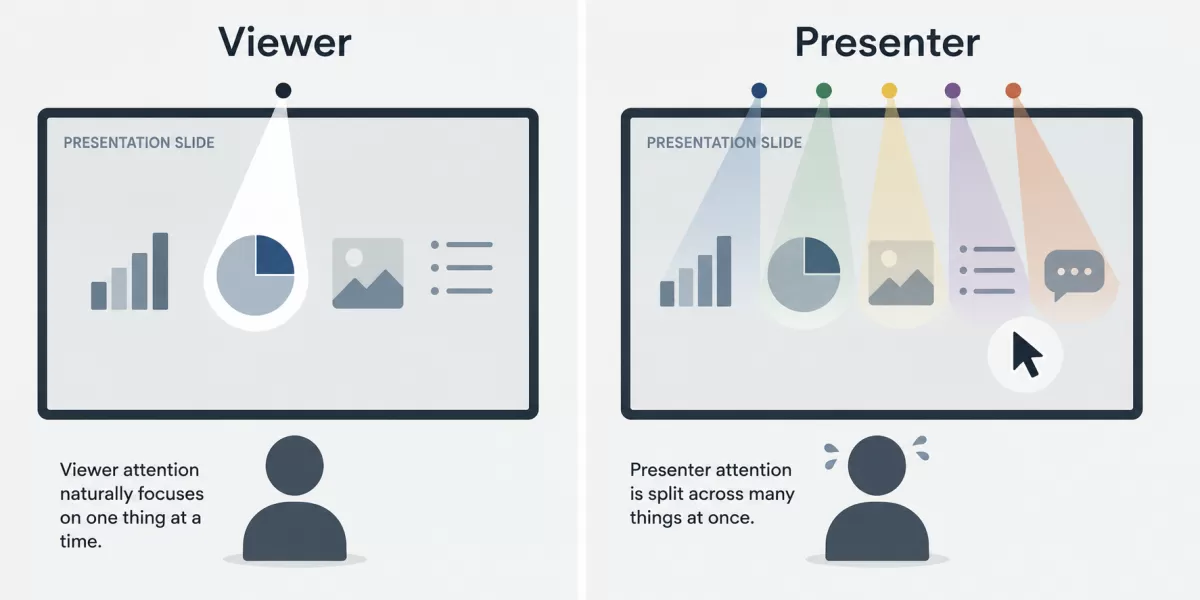
When someone shares their screen, it looks like both parties are looking at identical information. In practice, they're not experiencing it the same way at all.
The viewer typically has one job: watch and comment on what they see. They can scan the screen, spot the line of code, the button, or the link, and say so immediately. Their attention is narrow and focused.
The presenter is doing several things simultaneously. They're navigating the interface, recalling where something lives in a file structure or a settings menu, explaining what they're doing out loud, and often thinking a step or two ahead to what comes next. Locating a specific detail is just one part of a much larger cognitive load.
This is the core of the mismatch. The viewer sees a target. The presenter is running an entire operation. A few seconds of apparent hesitation from the presenter isn't a sign of confusion, it's the normal cost of doing five things at once instead of one.
Why Screen-Sharing Etiquette Matters More in Remote and Technical Work
This dynamic shows up constantly in software development, technical support, sales demos, and any administrative task done over a shared screen. A few reasons it's worth taking seriously:
- Cognitive load compounds under pressure. Rapid-fire instructions during a demo don't just slow the presenter down, they can cause mistakes, like clicking the wrong link or editing the wrong file, which then take longer to fix than if everyone had simply waited a few seconds.
- Remote communication strips out context. In person, a coworker can point directly at a monitor. Over a call, every instruction has to be translated into words, and vague phrasing like "click there" adds friction that wouldn't exist face-to-face.
- Perceived slowness affects confidence. In practice, presenters who feel rushed tend to describe it as feeling judged, even when no one intended that and over time, that discomfort can make people avoid leading demos or sharing their screen at all.
None of this is really about typing speed or technical skill. It's about the gap between how quickly information can be said and how quickly it can be located and acted on, and it applies just as much to someone scrolling through a spreadsheet or filling out a form as it does to someone navigating code.
It's also worth using what's already available. Most video conferencing tools now include a spotlight, annotation, or remote-cursor feature that lets a viewer point directly at something on the shared screen instead of describing it verbally. In code editors and IDEs with live-share extensions, a shared cursor does the same job. These tools don't replace patience, but they remove a lot of the ambiguity that makes patience necessary in the first place.
Screen-Sharing Etiquette: Practical Habits That Actually Help
Fixing this doesn't require a policy change or a long conversation about workplace communication. A few small habits, practiced consistently, make a real difference.
For Viewers
- Give it a few seconds. Before repeating or rephrasing an instruction, allow roughly 10 to 15 seconds for the presenter to locate what you're referring to. This feels longer in the moment than it actually is.
- Be specific up front. Instead of "go to that function," name the file, the line number, or a recognizable term from the code or interface. Specificity removes an entire search step for the presenter.
- Separate identifying from instructing. Say what you're pointing at before telling the presenter what to do with it, for example, "the login button, top right" rather than "click it" followed by clarifying questions.
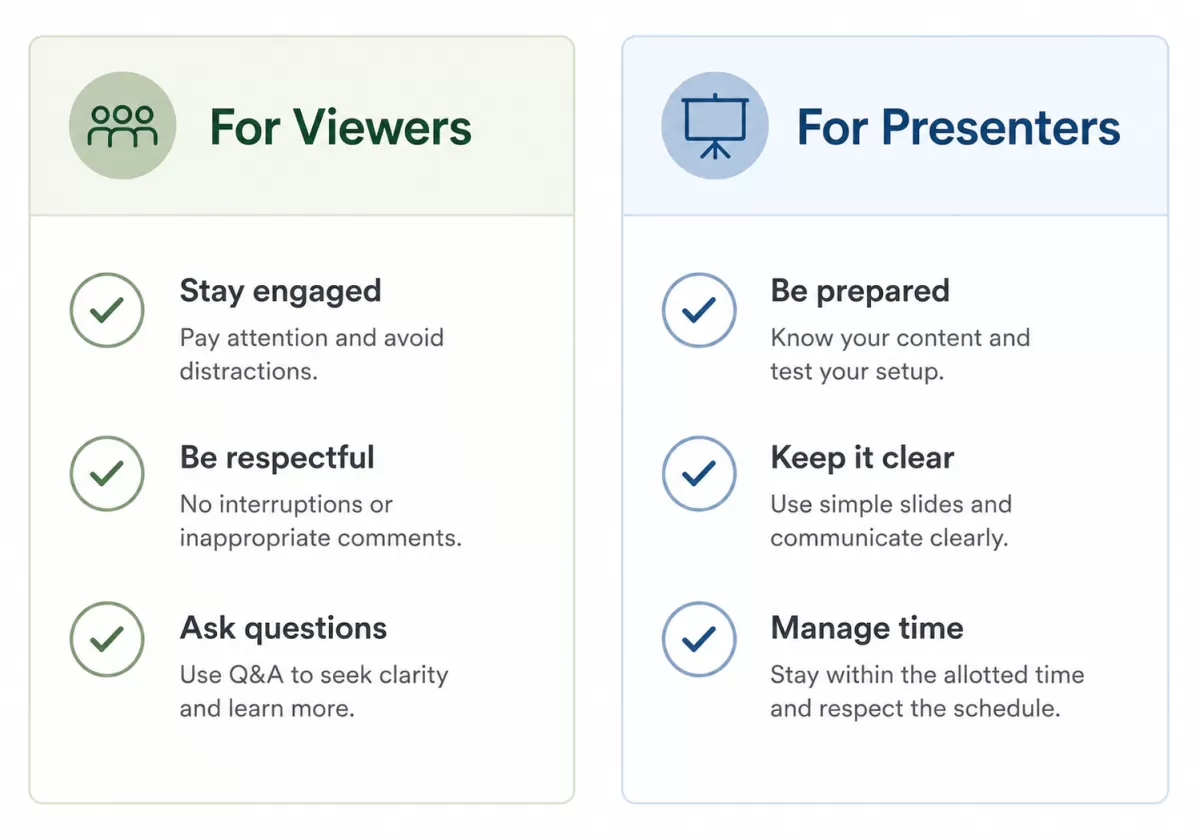
For Presenters
- Narrate your search. A quick "let me find that line" signals that you've heard the request and are working on it, which reduces the instinct viewers have to repeat themselves.
- Ask for the missing detail. If an instruction is vague, it's fine to ask directly: "Which file is that in?" This is faster than guessing and usually faster than the viewer assumed it would be.
- Don't apologize for the time it takes. Locating something while also explaining it out loud is genuinely harder than doing either task alone. There's no need to treat that as a personal failing.
Common Misunderstandings About Screen-Sharing Delays
"If they know the codebase, they should find it instantly." Familiarity helps, but it doesn't eliminate the extra step of translating a spoken instruction into a specific location on screen, especially while also talking and thinking ahead.
"Repeating the instruction faster will help." Usually the opposite is true. Repetition interrupts the search process and often forces the presenter to restart their scan of the screen.
"This is just a personality or skill issue." It's a structural difference in how attention is divided between the two roles, not a reflection of someone's competence.
Patience as a Collaboration Skill
Speed and clarity aren't actually in tension here — specific, well-timed direction is usually what makes a session faster overall, not slower. Teams that build in a little patience tend to notice fewer misclicks and less repeated explaining, and presenters become more willing to share their screen in the first place, since they're no longer working under a stopwatch.
Key Takeaways
- Viewers and presenters process a shared screen differently: one is searching for a single detail, the other is managing several tasks at once.
- A short pause of 10 to 15 seconds before repeating an instruction gives the presenter time to catch up without added pressure.
- Specific references — file names, line numbers, exact labels — remove guesswork and speed up the whole interaction.
- Apparent slowness during a demo is rarely about skill. It's usually just the visible cost of doing multiple things simultaneously.
Small adjustments like these don't require a formal process or a team-wide policy. They just require noticing the gap between what the viewer sees and what the presenter is actually doing, and giving that gap a little room to close.
Discussions (0)
No comments yet. Start the discussion below!
Leave a Reply