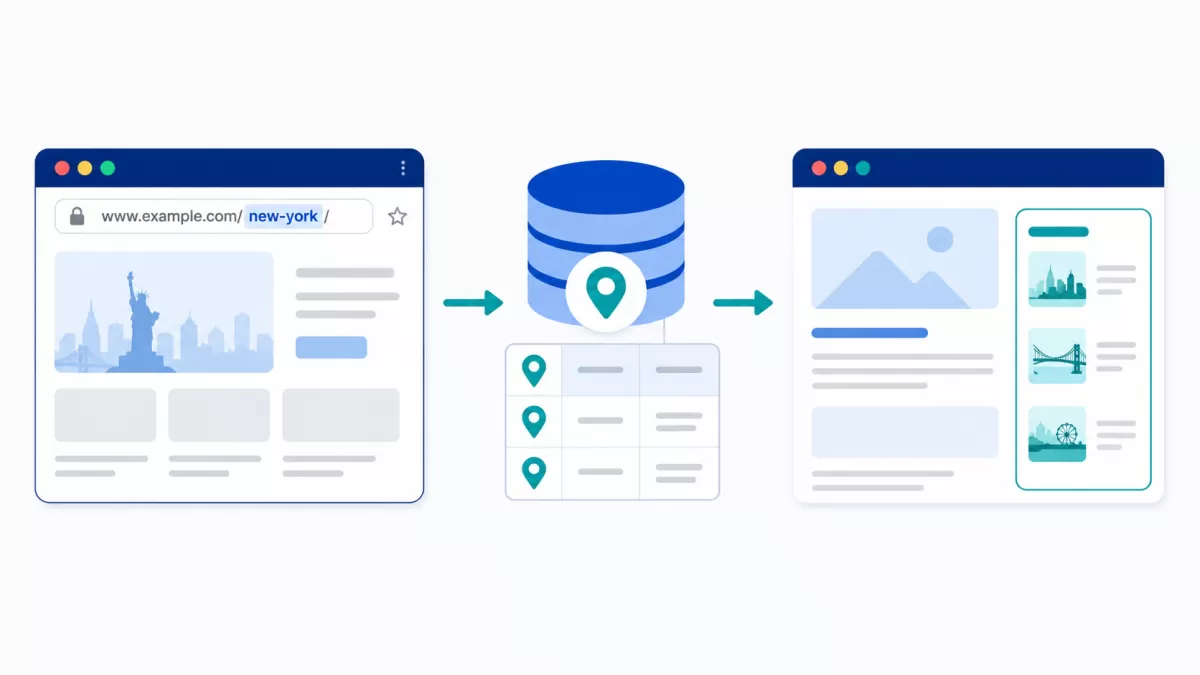
Show Related Drupal Content from the Same City (No Custom Code Needed)
Picture a real estate site built in Drupal. Each property listing has its own page, and each agent profile has its own page too. A visitor lands on a listing in Austin and, naturally, wants to see which agents work in that same area. Nothing in the page tells them. That's a missed connection — and it's a common gap on sites that pair two content types around a shared location.
The good news is that Drupal's Views module, combined with the Address module and a couple of contextual filter tricks, can solve this without writing a single line of custom code. This guide covers how to display related content from the same city in Drupal, step by step, and flags the places where site builders typically get tripped up.
Why Location-Based Relationships Matter
Address fields store more than a single line of text. Pulled in through the Address module, they break location data into structured subfields: country, administrative area, locality (city), postal code, and so on. That structure is what makes city-based filtering possible in the first place — you're not parsing a string, you're querying a defined field.
For sites where geography drives user intent — real estate, local business directories, event listings, franchise locators, healthcare provider networks — connecting content by city keeps visitors engaged and reduces the number of dead-end pages. Someone reading about a clinic in Denver benefits far more from seeing other Denver-based providers than from a generic "related articles" block pulled at random.
What You'll Need Before Setting Up Related Content by City
This approach assumes a specific but common setup:
- Two content types, referred to here as Content Type A (the page a visitor lands on) and Content Type B (the related content you want to surface).
- Both content types use an Address field, or at minimum Content Type A does, since its city value will drive the filter.
- The Address, Pathauto, and Token modules are installed and enabled.
- You're comfortable working in the Views UI and the Block Layout screen.
No custom code, no contrib module beyond the three listed above.
Step 1: Build the City Into the URL
The filtering trick used in Step 2 depends on the city being visible somewhere in the URL path of Content Type A. That's what makes it retrievable without a database query written by hand.
- Go to Configuration → Search and Metadata → URL aliases → Patterns (or Pathauto → Patterns, depending on your Drupal version).
- Create or edit the pattern for Content Type A.
- Using tokens from the Address field, build a path that includes the city. A pattern like this works well:
/properties/[node:field_address:locality]/[node:title]- Save the pattern.
Once this is in place, a node with an address in Springfield will generate a URL such as /properties/springfield/maple-street-listing, with the city sitting in a predictable position in the path.
Why this matters: contextual filters in Views can read a specific segment of the current URL. By putting the city in a fixed position, you give the View a reliable way to detect "what city am I currently looking at" without any manual coding.
Step 2: Create a View That Filters by City
This is where the related content actually gets pulled together.
Before starting, confirm Content Type B also has an Address field — the contextual filter needs a matching locality value on Content Type B to filter against. Without it, there's nothing for the view to match the URL's city segment to.
- Go to Structure → Views and add a new view.
- Set the view to display Content of type: Content Type B, using Teaser as the row style. Teaser mode keeps the block compact and consistent with how content is typically previewed elsewhere on the site.
- Add a Block display (rather than a page), since this will be embedded inside Content Type A's node display.
- Under Contextual Filters, add a filter based on the city (locality) subfield of the Address field. The exact label can vary slightly by Drupal version and by how the Address module exposes its subfields, but it will appear as an option tied to the address field's locality property — something similar to Content: Address (field_address:locality).
- Configure the filter's default value:
- Choose "Provide default value".
- Set the type to "Raw value from URL".
- Enter the path component number that corresponds to the city segment. In the example URL above (
/properties/springfield/maple-street-listing), the city sits in position 2. Components are counted starting from 1 in the Views UI — don't confuse this with zero-indexed counting from custom code. - Enable "Use path alias", since Pathauto rewrites the internal system path (the raw path being the internal, non-human-readable route like
/node/142), and you want the filter reading the friendly alias instead.
- Save the view.
At this point, the block will automatically restrict results to Content Type B nodes whose city matches whatever city appears in the current page's URL — no manual tagging or duplicate entry required.
Step 3: Place and Restrict the Block
The view is only useful once it's positioned correctly.
If your site uses Layout Builder rather than classic block regions, place the block through the Layout Builder interface on Content Type A's node display instead of the steps below — the visibility restriction in step 3 still applies, but it's configured per-layout rather than in Block Layout.
- Go to Structure → Block Layout.
- Place the new block in the region where you want related content to appear — often a sidebar or a section below the main content.
- Under the block's visibility settings, restrict it to display only on Content Type A nodes. This keeps the block from appearing on unrelated pages where the contextual filter wouldn't make sense anyway.
- Save the block configuration.
Visit any Content Type A node and the block should now display Content Type B entries from the same city automatically.
Common Mistakes to Watch For
Forgetting "Use path alias." Without this setting, the contextual filter reads the raw system path (like /node/142) instead of the friendly alias, and the city segment simply won't be there.
Miscounting the path component position. Path components are typically counted starting from 1, and it's easy to be off by one, especially if there's a language prefix or a fixed segment before the city. Test with a real node and adjust the position number if the block comes back empty.
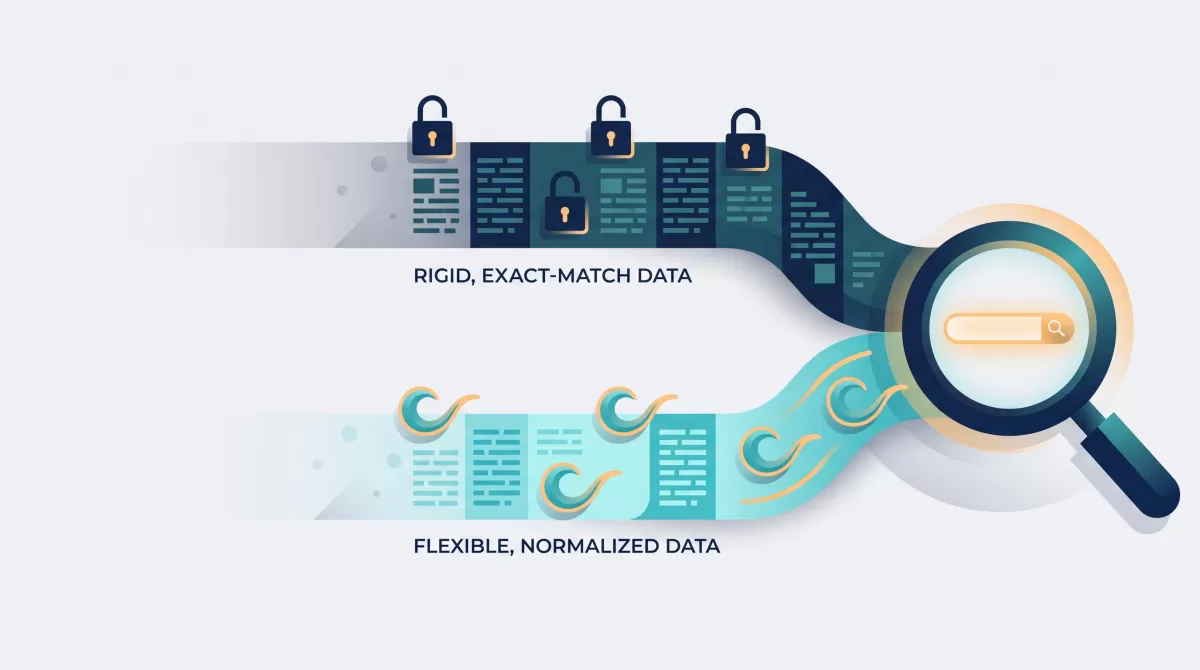
Inconsistent city naming. If some editors enter "Saint Louis" and others enter "St. Louis," the exact-match filter won't group them. Consider a controlled list or autocomplete source for the locality field if data consistency is a concern.
Missing address data. Nodes without a completed Address field simply won't have a city segment to build a URL from, which will break the alias pattern for those specific entries. A required field setting on the Address field can prevent this at the source.
Stale results from block caching. Views blocks are cached by default, so editing a node's city or adding new Content Type B entries may not appear immediately. If related content looks outdated, check the view's caching settings under Advanced → Other → Caching, and consider tag-based invalidation so edits show up without a manual cache clear.
Extending the Technique
Once the base relationship works, a few enhancements are worth considering:
- Add an "empty results" behavior in the view so the block hides itself (or shows a friendly message) when no matching content exists in that city, rather than displaying a blank container.
- Broaden the filter to a region or state as a fallback when no city-level matches are found, using the view's contextual filter validation and "not found" behavior.
- Reuse the same pattern for tags, categories, or other shared fields, since the underlying mechanic — URL-driven contextual filtering — isn't specific to location data.
Key Takeaways
- Address module subfields, including city, can be used directly in Views contextual filters.
- Pathauto and Token make the city visible in the URL, which is what allows the "Raw value from URL" filter option to work.
- Enabling "Use path alias" is essential; skipping it is the most common reason this setup fails on the first attempt.
- Restricting block visibility to the originating content type keeps the related content contextually relevant.
This setup takes about fifteen minutes once you know where each setting lives, and it scales cleanly — the same view keeps working as new content is added, with no manual linking required between individual nodes.
Further Reading
- Address module project page on Drupal.org — field structure and subfield reference.
- Views module documentation on Drupal.org — contextual filter behavior and options.
- Pathauto documentation on Drupal.org — token pattern syntax for URL aliases.
Discussions (0)
No comments yet. Start the discussion below!
Leave a Reply