
Introduction
A search box that only works some of the time is worse than one that doesn't work at all. Users trust it, get burned by it, and eventually stop using it altogether. That's exactly what happened on a recent Drupal project built with Search API and Apache Solr: a City field would return results for some queries and come up empty for others, with no obvious pattern at first glance.
The cause turned out to be a single configuration decision made early in the project, indexing the City field as a String type instead of a Full Text type. This article walks through why that choice broke search consistency, how Solr treats these two field types differently under the hood, and how to fix and prevent this issue in your own Drupal builds.
Table of Contents
- The Symptom: Search That Works Sometimes
- How Solr Field Types Actually Differ
- Diagnosing the Root Cause
- The Fix: Switching to Full Text
- Reindexing After a Field Type Change
- When String Fields Are Still the Right Choice
- Performance Considerations
- Security and Data Integrity Considerations
- Common Mistakes to Avoid
- Best Practices for Field Type Selection
- Troubleshooting Checklist
- Key Takeaways
- Conclusion
The Symptom: Search That Works Sometimes
On this project, content editors had tagged a set of nodes with a City field, values like London, Manchester, and Toronto. The field was indexed through Search API into a Solr backend so visitors could filter content by location.
Everything looked fine during initial testing. A search for "London" returned the expected nodes. But reports started coming in that searching for "london" (lowercase) returned nothing, even though matching content clearly existed. Testing confirmed the pattern: exact-case matches worked, and anything else silently failed.
This kind of intermittent behavior is deceptive because it passes casual QA. A developer testing with correctly capitalized input sees no problem. It's only when real users type however they naturally would, lowercase, mixed case, autocomplete suggestions, mobile keyboard defaults — that the gap shows up.
How Solr Field Types Actually Differ
To understand the bug, it helps to know what Solr does differently for String fields versus Text (Full Text) fields at index time.
String fields
String fields store the value exactly as submitted, character for character. Solr does not tokenize, lowercase, or otherwise normalize the input. A String field is designed for values you want to match, sort, or facet on exactly things like a status code, a UUID, or a SKU. When you query a String field, the comparison is literal.
Text (Full Text) fields
Text fields, by contrast, go through an analyzer chain before they're stored in the index. The exact steps depend on how that chain is configured in the Solr schema, but a typical setup includes:
- Lowercasing every token
- Splitting text into individual words (tokenization)
- Stemming words to their root form
- Applying synonym expansion, if configured
- Optionally removing common stop words, where the schema enables it
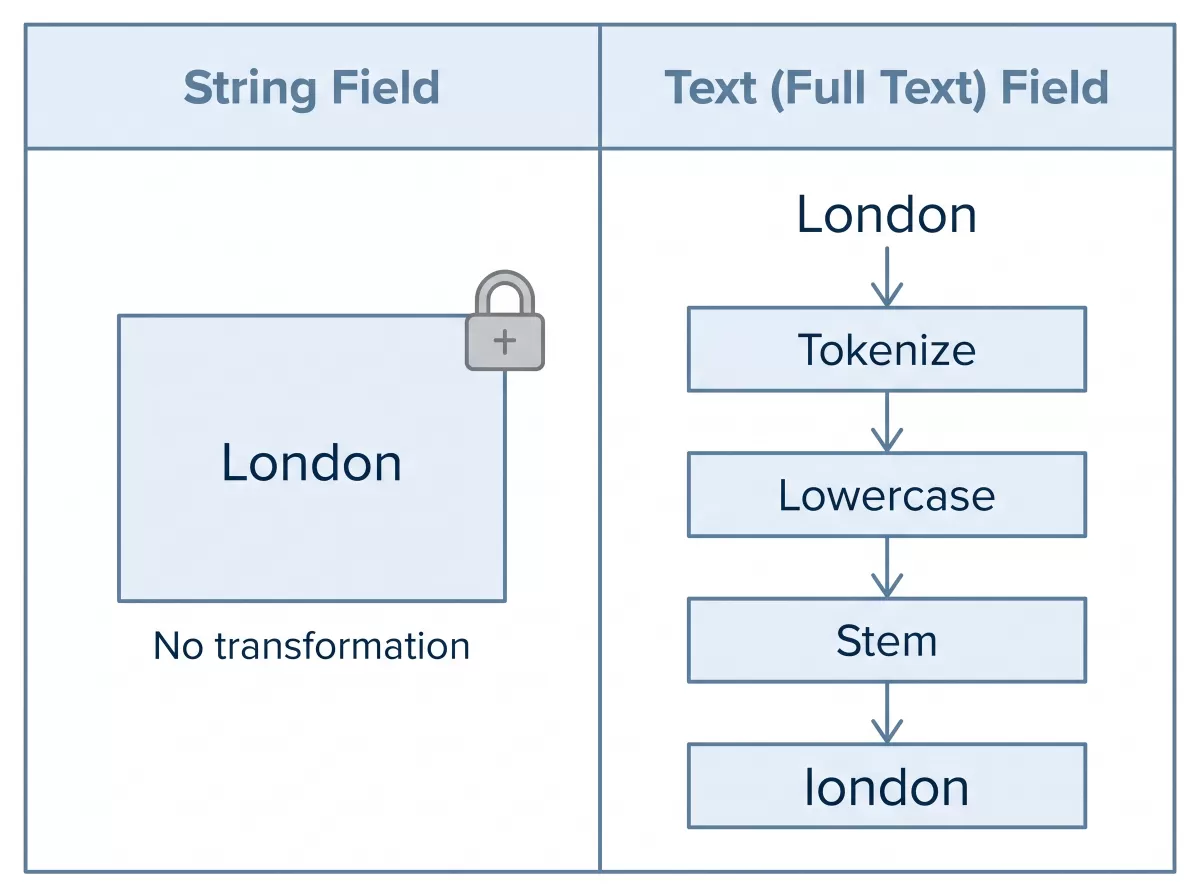
Lowercasing is the step that matters most here. Because a standard analyzer lowercases input at index time, a Text field treats "London" and "london" as equivalent. That equivalence is exactly what a location or keyword search needs, and it's exactly what was missing when the City field was mapped as String.
This isn't a Drupal-specific quirk, it's how Solr's schema and analyzers work generally, as documented in Apache Solr's own field type reference. Drupal's Search API module simply exposes these Solr field type choices through its own field mapping UI when you configure an index.
Diagnosing the Root Cause
The debugging process followed a fairly standard path:
- Reproduce with controlled input. Searching for the exact string stored in the field ("London") worked. Searching for any case variation didn't.
- Inspect the Solr schema. Checking the Search API server's field mapping showed the City field assigned to a
stringSolr field type rather than atext_general(or similar) type. - Query Solr directly. Using Solr's admin UI to run a raw query against the index confirmed the stored value was exactly "London", no normalization had happened.
- Cross-check other fields. Fields already mapped as Full Text, such as the body or title, did not show the same case sensitivity, which narrowed the cause down to the field type mapping rather than a broader indexing or connector issue.
This step of comparing a broken field against a working one is often the fastest way to isolate a Solr configuration issue, since it rules out server-level or connection-level problems.
The Fix: Switching to Full Text
Once the cause was clear, the fix itself was straightforward:
- In the Drupal admin UI, go to Configuration > Search and metadata > Search API.
- Open the relevant index.
- Locate the City field in the Fields tab.
- Change its type from String to Fulltext.
- Save the field configuration.
- Clear the index and trigger a full reindex so Solr rebuilds the field using the new analyzer chain.
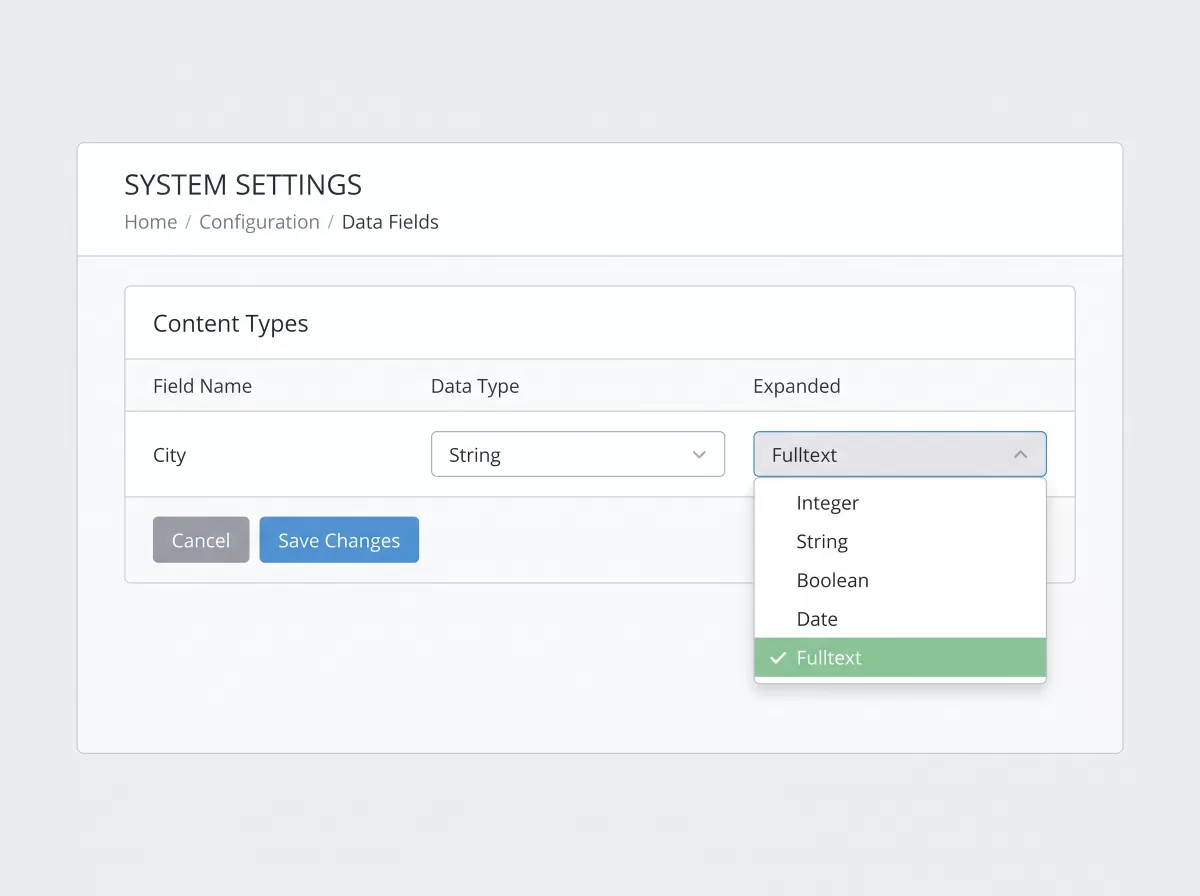
After reindexing, searches for "london," "London," and "LONDON" all returned the same, correct result set. The fix didn't require custom code, a patch, or a Solr schema.xml edit, because Search API's default Solr field type mappings already include an appropriate analyzed text type.
Reindexing After a Field Type Change
Changing a field's type in Search API updates the index configuration, but it does not retroactively change data that's already stored in Solr. Existing entries remain indexed under the old field type until they're reprocessed.
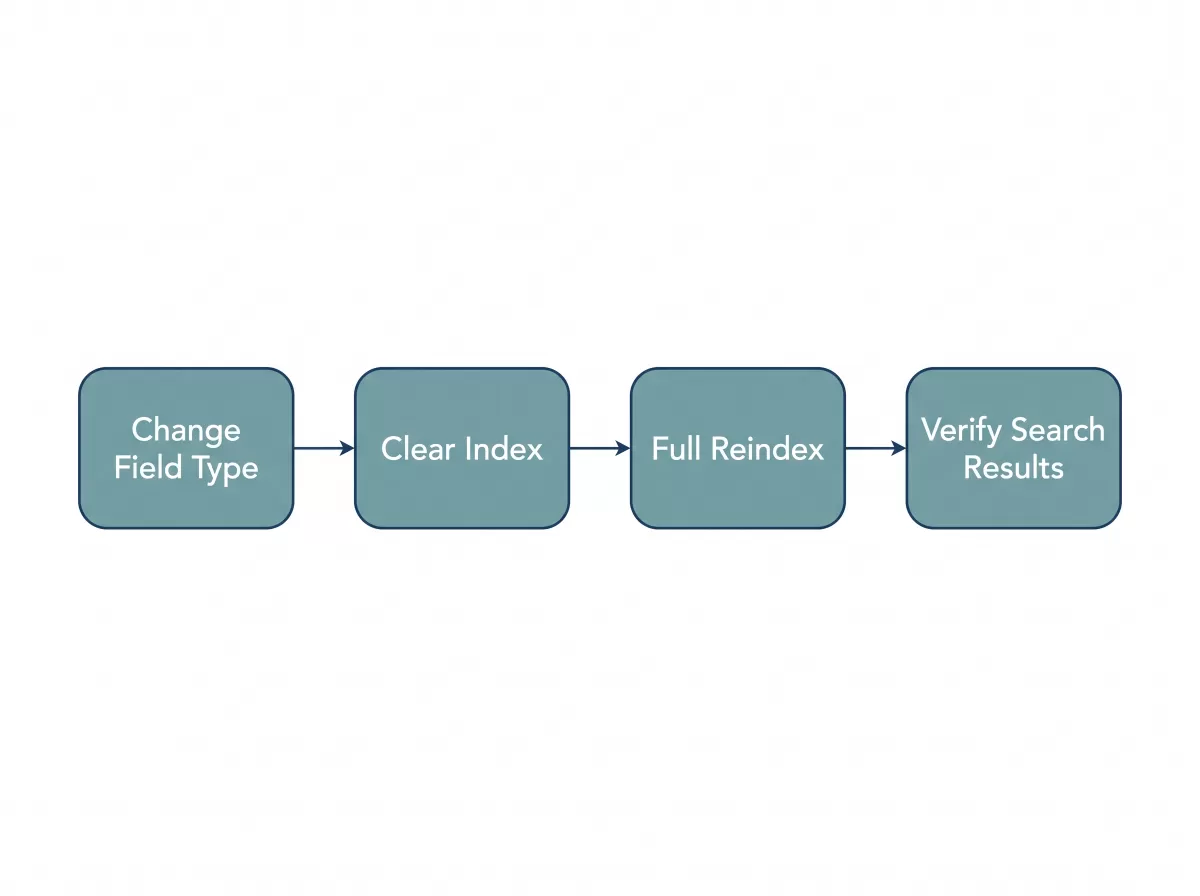
A few things worth knowing before you reindex:
- A full reindex is required, not an incremental update. Partial or delta indexing won't rewrite the analyzer applied to existing documents.
- Reindexing can take time on large sites, since Solr has to reprocess every item, not just the field you changed.
- Search will be degraded during reindexing unless you're running a setup that swaps in a fully built index atomically (for example, using a staging core or collection and aliasing it in once complete).
- Test on a staging environment first if the site has a large content volume or serves significant search traffic, so you can measure the reindex time and confirm the query behavior before touching production.
When String Fields Are Still the Right Choice
Full Text isn't automatically the better choice for every field. String fields exist for good reasons, and using Full Text everywhere introduces its own problems.
Use a String field when you need
- Exact match filtering, such as a status field with fixed values like "published" or "draft."
- Sorting and faceting on the literal value, where you don't want "USA" and "usa" collapsed into the same facet bucket.
- Case-sensitive identifiers, such as order numbers, SKUs, or hashes, where "AB123" and "ab123" genuinely represent different things.
- Aggregation accuracy, since faceting on a Full Text field can split what should be one facet value into multiple tokens.
Use a Full Text field when
- Users type the value freely, and you want their input matched regardless of case or minor variation.
- The field represents natural language content, names of people, places, descriptions, or any free-text input.
- You want partial matching, stemming, or fuzzy behavior rather than exact equality.
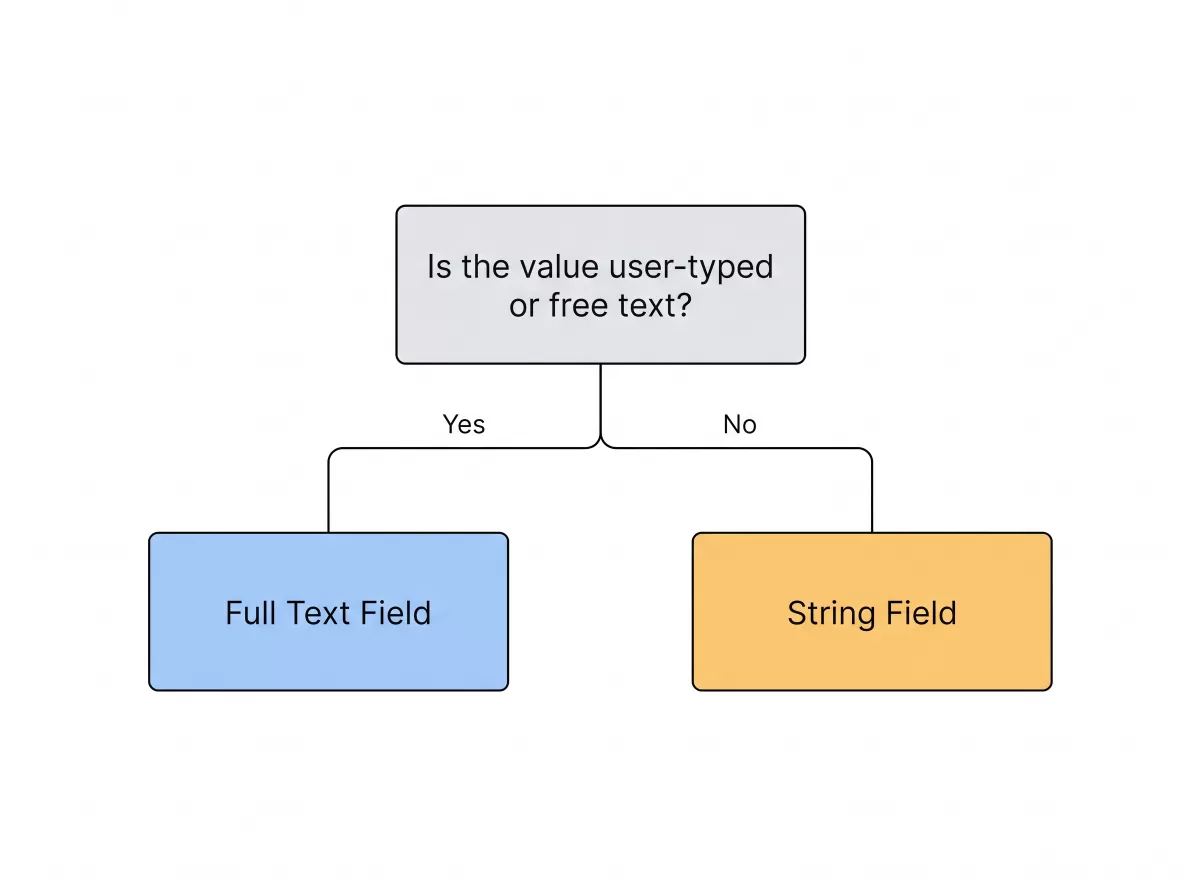
A City field is a good example of where the "right" answer depends on the use case. If City values are populated from a fixed taxonomy and the UI presents them as a dropdown or facet, String may actually be preferable for clean faceting. If City is free text or user-searchable, Full Text is the safer default. In this case, since visitors were typing city names into a search box, Full Text matched the actual usage pattern.
Performance Considerations
Field type choice has performance implications beyond correctness:
- Text fields are larger in the index because the analysis chain can generate multiple tokens per value (for multi-word city names, for instance), whereas a String field stores one literal value.
- Faceting on Text fields is more expensive than faceting on String fields, since Solr has to aggregate across tokens rather than exact values. For fields used heavily in facets, consider indexing the same source data twice, once as String for faceting and once as Full Text for searching, using Search API's ability to map one Drupal field to multiple Solr fields.
- Full Text search queries generally cost more at query time due to relevance scoring and tokenized matching, compared to the near-constant-time lookup of an exact String match. For a City field on a moderate-traffic site, this difference is negligible, but it's worth knowing if you're indexing large free-text fields at scale.
Security and Data Integrity Considerations
Field type selection also affects data handling in ways that are easy to overlook:
- Don't index sensitive identifiers as Full Text if exact matching matters for access control logic elsewhere in your application, tokenization can make partial or fuzzy matches succeed where you'd expect them to fail.
- Sanitize and validate field input before indexing, regardless of field type. Solr's analyzers handle text normalization for search purposes, but they are not a substitute for input validation on the Drupal side.
- Review facet output for information leakage. Faceting on a Full Text field can sometimes expose individual tokens from a longer text value in ways the original field wasn't intended to reveal, particularly if the field mixes public and internal content.
Common Mistakes to Avoid
- Assuming default field type mappings are always correct. Search API applies reasonable defaults based on the Drupal field type, but a Drupal "Text (plain)" field doesn't automatically become the right Solr analyzer for your use case.
- Testing only with well-formed input. Case sensitivity bugs like this one hide behind clean QA data. Test with the same messy, inconsistent input real users produce.
- Forgetting to reindex after a schema change. A field type change without a full reindex leaves you debugging a "fix" that doesn't appear to work.
- Using Full Text for every field "to be safe." This bloats the index, slows faceting, and can produce partial matches you didn't intend.
- Not checking the Solr admin UI directly. Drupal's Search API UI shows you the configuration, but querying Solr directly shows you what was actually stored, the two aren't always in sync until a reindex completes.
Best Practices for Field Type Selection
- Map each field's Solr type to how it's actually queried, not just to its Drupal field type.
- Use String for exact match, sorting, and faceting on controlled vocabularies.
- Use Full Text for anything users type freely, including names, locations, and descriptive content.
- When you need both exact faceting and flexible search on the same underlying data, index it twice under two different Solr field names (see Performance Considerations above).
- Document field type decisions in your project's technical notes so future developers understand why a given field is mapped the way it is.
- Always test search behavior with varied casing, partial input, and multi-word values before considering an index configuration final.
Troubleshooting Checklist
If you're seeing inconsistent Solr search results in Drupal, work through this list:
- Confirm the exact search term returns a result, then test case variations.
- Check the field's Solr type in Search API's Fields tab.
- Query Solr directly through its admin UI to see the stored, analyzed value.
- Compare against a known-working field to isolate whether the issue is field-specific or index-wide.
- After changing a field type, run a full reindex and not a partial update.
- Re-test with the same case variations once reindexing completes.
Key Takeaways
- Solr String fields store values exactly as entered and perform literal, case-sensitive matching.
- Solr Text (Full Text) fields normalize input through an analyzer chain, which typically includes lowercasing and tokenization.
- Case-sensitive search failures in Drupal Search API are often a symptom of a field mapped as String when it should be Full Text.
- Changing a field type in Search API requires a full reindex to take effect on existing data.
- String fields remain the right choice for exact matching, sorting, and clean faceting; Full Text is right for free-text, user-typed search.
- For fields needing both faceting and free-text search, indexing the same data under two Solr field types is a practical workaround.
Conclusion
A single field type setting was responsible for search results that appeared random to end users but had a clear, mechanical explanation once traced back to Solr's indexing behavior. String fields and Full Text fields aren't interchangeable, they represent two different contracts about how a value should be matched, and choosing the wrong one produces exactly the kind of inconsistent, hard-to-reproduce bug described here.
The broader lesson extends past this one field: when configuring Search API and Solr in Drupal, match the field type to how the field will actually be queried, and always confirm the choice with real, imperfect user input rather than clean test data.


Discussions (0)
No comments yet. Start the discussion below!
Leave a Reply