Introduction
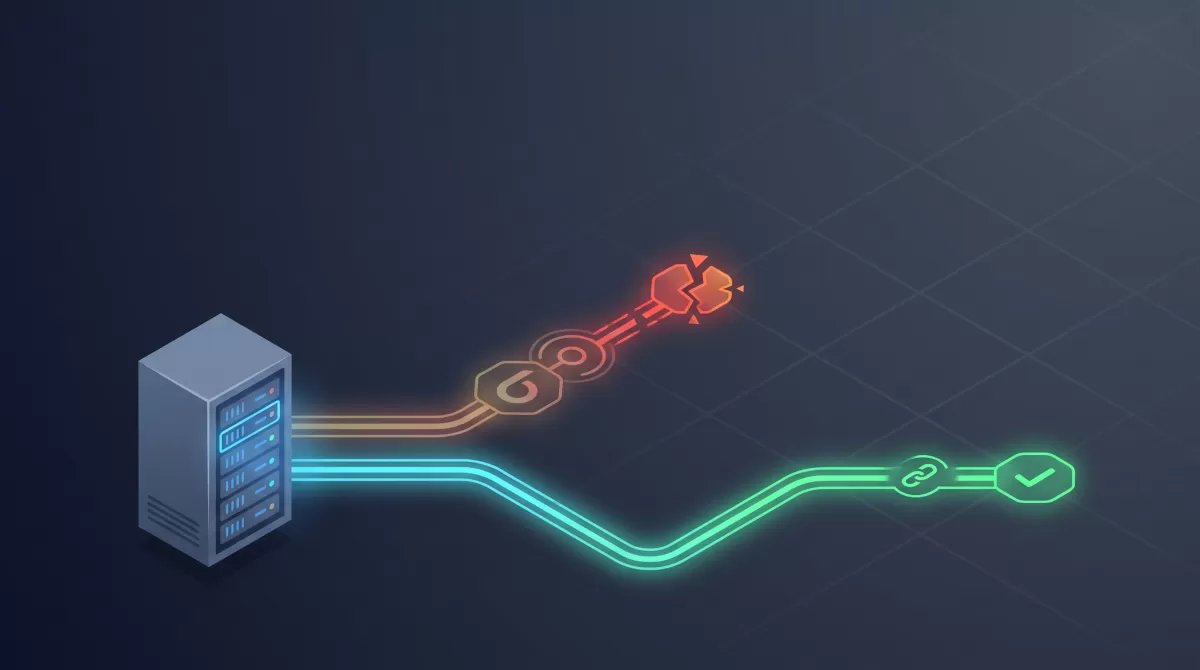
A server that has run without issue for months can develop a fault that looks impossible to explain. One such case: every request to a site kept its normal speed except calls to Google APIs, which suddenly needed close to sixty seconds to complete. No deployment had happened. No configuration file had been touched. Only traffic bound for Google's infrastructure was affected.
The cause turned out to be a routing problem tied to IPv6. This article walks through why that happens, how to recognize the symptoms, and how to fix the issue both as an emergency patch and as a permanent solution. If you run a web server, manage a VPS, or maintain applications that depend on external APIs like Google Maps, reCAPTCHA, Firebase, or any other Google-hosted service, this is worth understanding before it costs you an afternoon of confused debugging.
Table of Contents
- The Symptom: One Service Slows Down for No Reason
- Why IPv6 Is the Usual Suspect
- How Happy Eyeballs Is Supposed to Prevent This
- Diagnosing the Problem Step by Step
- The Fast Fix: Disabling IPv6
- The Long-Term Fix: Repairing IPv6 Properly
- Security and Compatibility Considerations
- Common Mistakes to Avoid
- Best Practices for Dual-Stack Servers
- Key Takeaways
- Conclusion
The Symptom: One Service Slows Down for No Reason
The pattern is usually the same across affected servers. Response times for your own application logic, database queries, and static assets stay normal. But any outbound call to a Google-hosted endpoint, the Maps JavaScript API, the reCAPTCHA verification endpoint, Firebase, or Google Fonts takes somewhere between 20 and 75 seconds before it finally succeeds.
Retrying the same request a moment later is often fast. That inconsistency is what makes the bug so disorienting. If it were a firewall block, every attempt would fail the same way. If it were a DNS problem, resolution itself would error out rather than eventually succeed. Instead, the request seems to succeed, just far too slowly, and only for a specific set of destinations.
That specificity is the clue. Whatever is slow is tied to something those destinations have in common, not something wrong with your application code.
Why IPv6 Is the Usual Suspect
Google's infrastructure has supported IPv6 for years, and Google's DNS resolvers will hand out an AAAA (IPv6) record for their services whenever a client's resolver requests one. Many Linux distributions, hosting images, and container templates enable IPv6 by default, even in environments where the actual network path never got fully configured. That mismatch, an interface reporting IPv6 as available while the upstream routing is incomplete or broken is the root of this entire problem.
When your server tries to reach a Google API, the operating system's resolver often returns both an IPv4 and an IPv6 address. If IPv6 connectivity looks viable at the interface level, many HTTP clients and libraries will attempt the IPv6 address first. If that route is dead, packets go out but never get a response, the connection attempt has to fully time out before anything falls back to IPv4.
That timeout is rarely instant. Connection timeout defaults vary by library and language runtime, but many commonly used HTTP clients default to somewhere in the range of tens of seconds rather than failing fast. In cases like this one, the reported delay lines up with exactly that pattern: the client exhausts its connect timeout on the dead IPv6 route, then succeeds almost immediately over IPv4.
Not every external service is equally exposed to this. A third-party API that only publishes an A record (IPv4 only) will never trigger the IPv6 attempt in the first place, which is why unrelated integrations keep working while Google-specific calls stall.
How Happy Eyeballs Is Supposed to Prevent This
There's a standard specifically designed to prevent this class of failure: Happy Eyeballs, formalized in RFC 8305. The idea is simple. When a client has both an IPv4 and IPv6 address for a destination, it shouldn't fully commit to one and wait out a long timeout before trying the other. Instead, it starts a connection attempt on one protocol, and if it hasn't succeeded within a short window (typically around 250 milliseconds), it starts a parallel attempt on the other. Whichever connects first wins.
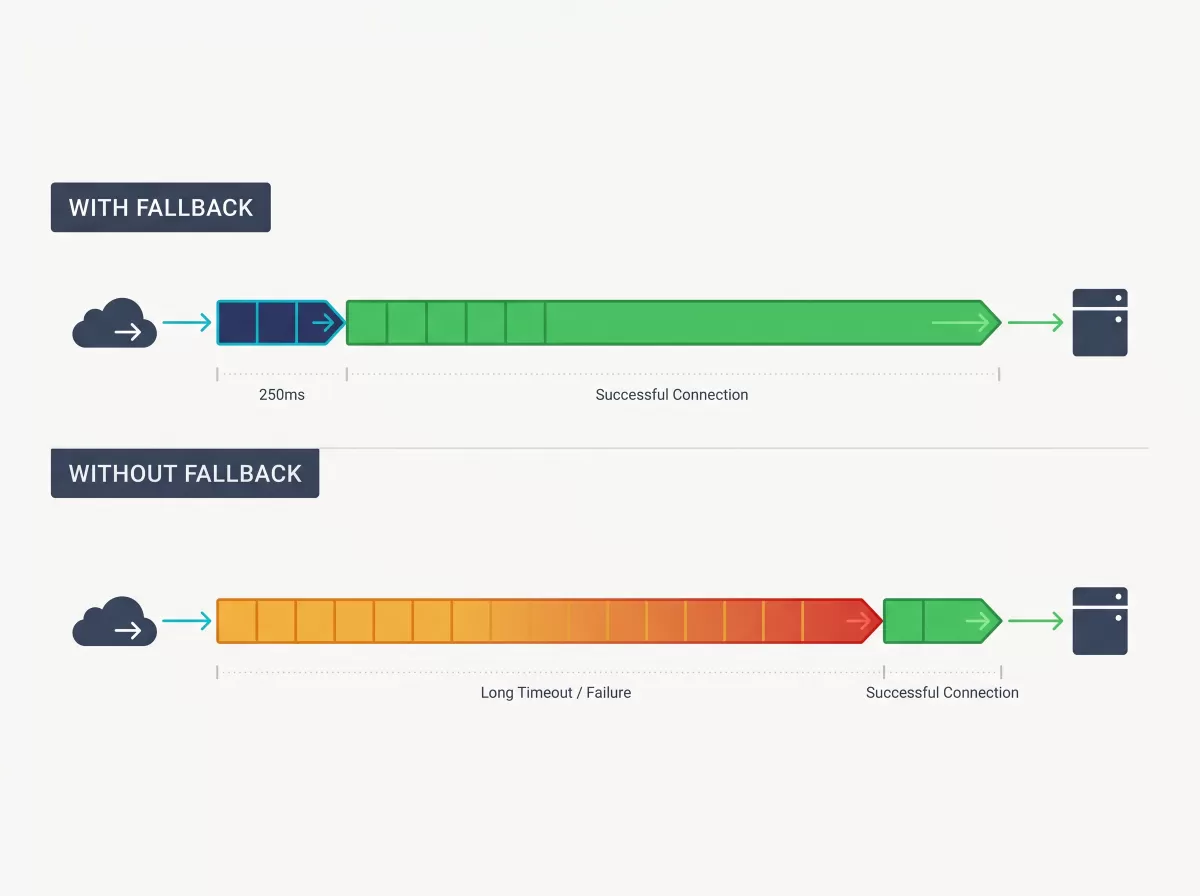
Modern browsers implement this correctly, which is why users browsing your site directly rarely notice IPv6 misconfiguration on the client side. The issue in this case sits on the server, not in the browser. Server-side HTTP clients, especially older library versions, minimal runtime environments, or low-level socket implementations, frequently do not implement Happy Eyeballs at all. They resolve a hostname, pick the first address returned, attempt to connect, and wait for either success or a hard timeout before trying anything else.
This is a critical distinction. The bug isn't that IPv6 is inherently unreliable. It's that the fallback mechanism protecting against a bad IPv6 route often doesn't exist in server-side networking stacks, so a broken route becomes a full-length stall instead of a near-instant handoff to IPv4.
Diagnosing the Problem Step by Step
Before changing any configuration, confirm the cause rather than assuming it. A few checks will tell you definitively whether IPv6 is the culprit.
Check whether IPv6 is enabled and has an address:
ip -6 addr showIf this returns a global (non-link-local) IPv6 address, the interface believes it has IPv6 connectivity.
Test actual IPv6 reachability to a known-good host:
ping6 -c 4 google.comIf this hangs or fails while ping -4 to the same host succeeds, you have a broken IPv6 path, not just a slow one.
Compare connection times over each protocol directly:
curl -6 -o /dev/null -s -w "IPv6 time: %{time_connect}s\n" https://www.google.com
curl -4 -o /dev/null -s -w "IPv4 time: %{time_connect}s\n" https://www.google.com
A large gap between these two numbers, especially one where the IPv6 attempt times out entirely, confirms the diagnosis.
Check what your resolver is actually returning:
dig AAAA www.googleapis.com
dig A www.googleapis.com
If an AAAA record is present and your server has no usable IPv6 route, every client on that server that doesn't implement Happy Eyeballs is a candidate for this exact slowdown.
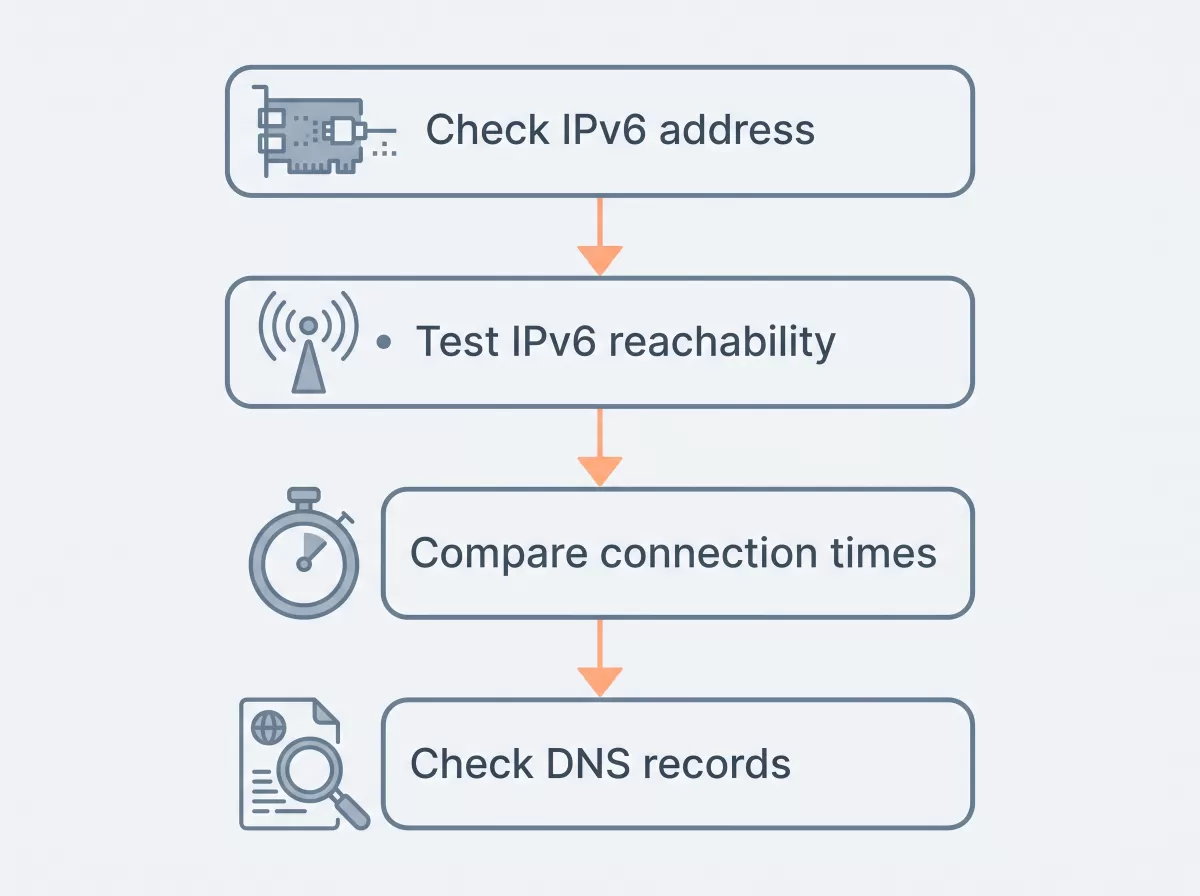
Running these checks first matters because IPv6 problems can look identical to other issues, including expired TLS certificates on one protocol stack, asymmetric firewall rules, or a misbehaving upstream proxy. Confirming the actual failure point saves you from applying the wrong fix.
The Fast Fix: Disabling IPv6
Once IPv6 is confirmed as the cause, the immediate remedy is to disable it at the system level. This restores normal response times right away, because outbound connections no longer attempt a dead route before falling back.
On most Linux distributions using sysctl, this can be done without a reboot:
sudo sysctl -w net.ipv6.conf.all.disable_ipv6=1
sudo sysctl -w net.ipv6.conf.default.disable_ipv6=1
To make the change persistent across reboots, add the same settings to /etc/sysctl.conf or a file under /etc/sysctl.d/:
net.ipv6.conf.all.disable_ipv6 = 1
net.ipv6.conf.default.disable_ipv6 = 1
Then apply it with sudo sysctl -p.
This is a legitimate short-term fix, not a hack. It removes the broken code path entirely rather than papering over it, and it's fully reversible once the underlying network configuration is corrected. It should be treated as a stopgap, though, not a permanent architectural decision, since some networks and future services may increasingly expect or prefer IPv6 reachability.
The Long-Term Fix: Repairing IPv6 Properly
Disabling IPv6 solves the symptom. The actual defect is a network path that advertises IPv6 support without delivering working connectivity, and that needs to be resolved with your hosting provider or network team.
A few things worth checking or requesting when working with a provider:
- Confirm IPv6 is actually routed to your instance, not just assigned. Some providers assign an IPv6 address at the interface level without properly routing it upstream, which produces exactly this failure mode.
- Verify the gateway and prefix configuration match what the provider expects. A misconfigured default route or an incorrect prefix length will make an address appear valid locally while being unreachable externally.
- Ask the provider to test reachability from their side. They can confirm whether the issue is on their network edge or in your instance's configuration.
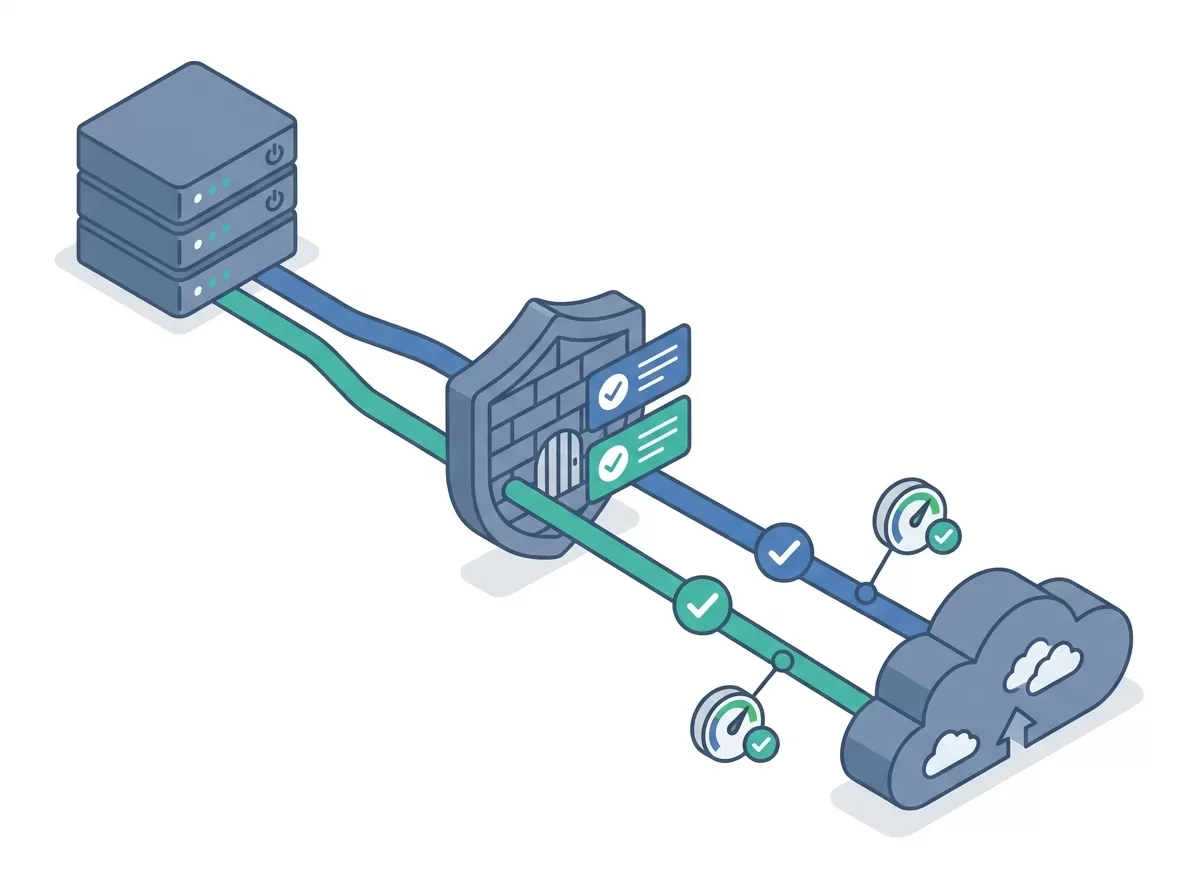
- Check firewall and security group rules for IPv6 specifically. It's common for teams to configure IPv4 firewall rules carefully while leaving IPv6 rules default-open, default-closed, or simply absent, which can cause connections to be silently dropped rather than actively refused.
Once IPv6 is verified as fully functional, in both directions, re-enable it and re-run the same diagnostic commands from the previous section to confirm connection times are consistent across both protocols before considering the issue closed.
Security and Compatibility Considerations
Security Trade-offs of Disabling IPv6
Leaving IPv6 permanently disabled is not without trade-offs. Some services increasingly favor or eventually may require IPv6, particularly as IPv4 address exhaustion continues to push infrastructure providers toward dual-stack or IPv6-first designs. A server with IPv6 disabled indefinitely may lose the ability to reach IPv6-only services in the future, though this remains uncommon for now.
There's also a security angle worth noting. If IPv6 is disabled at the interface level but re-enabled unexpectedly by a package update, container restart, or provider-side change, and the corresponding firewall rules were never written for IPv6 in the first place, the server could become reachable in ways that weren't intended. Whenever you manage IPv6 state, keep matching firewall rules in place for both protocols rather than assuming IPv4 rules alone are sufficient protection.
Compatibility Trade-offs of Disabling IPv6
Compatibility-wise, most application frameworks handle disabled IPv6 without issue, since they typically fall back to IPv4 sockets automatically. Double-check any service that explicitly binds to an IPv6 address (::1 or [::]) in its configuration, since that binding will fail once IPv6 is disabled at the kernel level, and the service may need a configuration update to bind to 0.0.0.0 or an IPv4 address instead.
Common Mistakes to Avoid
- Assuming the problem is Google's servers. Since the requests do eventually succeed, it's easy to blame API rate limits, quota issues, or Google-side outages instead of checking your own network stack first.
- Restarting services repeatedly without diagnosing. Restarting web servers or application processes won't resolve a routing-level fault and just delays finding the actual cause.
- Disabling IPv6 and never revisiting it. Treating the fast fix as a permanent solution means the underlying misconfiguration stays broken indefinitely, and any future service that truly requires IPv6 will fail unexpectedly.
- Changing DNS settings instead of network settings. Since the symptom looks DNS-adjacent, so
 me teams try changing resolvers or clearing DNS caches first. This won't help if the AAAA record itself is valid and the problem is the route, not the lookup.
 - Not checking firewall rules for IPv6 separately. IPv4 and IPv6 traffic are governed by separate rule sets in most firewall tools (iptables vs ip6tables, for example), and it's easy to secure one while leaving the other misconfigured.
Best Practices for Dual-Stack Servers
- Test both IPv4 and IPv6 connectivity explicitly after any hosting migration, kernel update, or network configuration change, rather than assuming both work because one does.
- Keep firewall rules synchronized across both protocols so a policy applied to IPv4 has an equivalent IPv6 rule.
- Monitor outbound request latency to third-party APIs as part of routine health checks, since a sudden latency spike to one provider, with everything else unaffected, is a strong early signal of exactly this kind of routing fault.
- Where possible, use HTTP clients and libraries that implement Happy Eyeballs or an equivalent fast-fallback mechanism, particularly for server-side code that depends on external APIs.
- Document whether your production environment intentionally runs dual-stack, IPv4-only, or IPv6-only, so future troubleshooting starts from a known baseline instead of assumptions.
Key Takeaways
- A slowdown affecting only specific external services, while everything else on the server stays fast, points to a network routing issue rather than an application bug.
- Google APIs commonly return IPv6 addresses, and a broken IPv6 route on the server can cause each request to time out before falling back to IPv4.
- Happy Eyeballs (RFC 8305) is designed to prevent this, but many server-side HTTP clients don't implement it, unlike most modern browsers.
- Disabling IPv6 is a valid, reversible short-term fix that restores normal response times immediately.
- The permanent fix is verifying and correcting IPv6 routing with your hosting provider, then re-enabling it once confirmed to work in both directions.
- Diagnostic commands like
ping6,curl -6, anddig AAAAcan confirm the cause before you change any configuration.
Conclusion
A single misconfigured protocol can produce a bug that looks inconsistent, service-specific, and hard to reproduce, when the actual mechanism is straightforward once identified. IPv6 being enabled but non-functional is a common enough hosting environment default that it's worth checking early whenever a server's slowdown is oddly selective. Turning IPv6 off gets you out of the immediate slowdown right away, but the real fix is making sure the network path is either fully working or intentionally turned off, rather than left in a half-configured state that will eventually cause the same problem again.
Discussions (0)
No comments yet. Start the discussion below!
Leave a Reply